
Do you have heavily modified WooCommerce products? If your answer is “yes” then WP Full Picture may not be able to correctly track them.
In this tutorial, you will learn how to fix it. I will tell you how to disable the standard “add to cart” event and write code that will track all the data you want with all of your tracking tools.
How to disable sending standard WooCommerce “add to cart” events
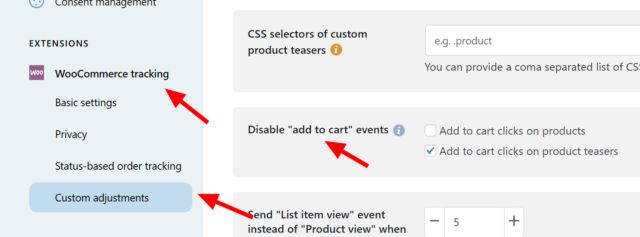
To disable sending ATC events simply go to the WooCommerce Tracking module > Custom Adjustments > and choose what types of events you want to disable. You can turn off tracking events in product pages or product lists.
How to send custom ATC events
To send custom ATC events, you need to understand how WP FP tracks “add to cart” events. The simplified description looks like this…
Step 1. When the page finishes loading, WP FP checks if there are any products on the page.
Step 2. It fills in a JavaScript array fpdata.woo object with the information about the products it found
Step 3. It fires the FP.doActions() function which triggers “add to cart” events in all tracking tools installed with WP FP.
To correctly send add to cart event, you need to write the code for step 2 and 3. Let me show you how.
What is fpdata object and how to fill in fpdata.woo
In short, fpdata object holds data that WP FP uses to track stuff (learn more).
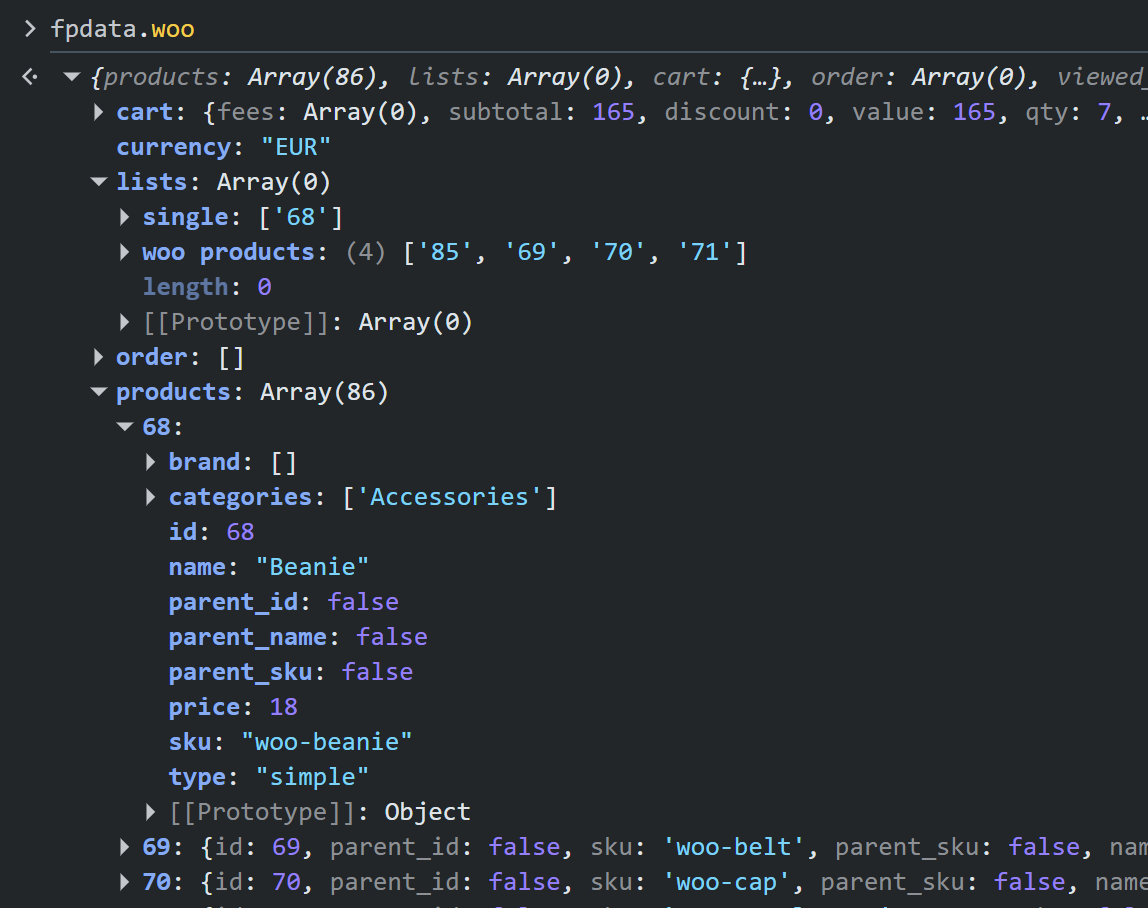
When you check the data structure in the browser console, you will see something like this:

To correctly track additions to cart, you need to:
- add the data of the product you want to track to the
fpdata.woo.productsarray, and - add the ID (numerical) of the product to:
fpdata.woo.lists.singlearray – if you want to track additions to cart from product pagefpdata.woo.lists[your_custom_list_name]array – if you want to track additions to cart from a product list
Here is what fpdata.woo looks like. Please notice, that you do not have to fill anything except the “products” and “lists” arrays.
Attention. Depending on your configuration in the WooCommerce tracking module, the product data may slightly differ. Check the fpdata yourself to make sure that you add correct data.
Attention 2. If you are adding a variant of a product, then you need to also add to the “products” and “lists” arrays, the data of the parent product.
How to send the FP.doActions function
The FP.doActions function triggers “add to cart” events in all the tracking tools you installed with WP Full Picture.
How to send FP.doActions to track add to cart events on products in product lists
To track when a visitor clicks “add to cart” on a product list, you need to fire this function:
let my_prod_id = 999;
FP.doActions( 'woo_add_to_cart', { 'products' : [[fpdata.woo.products[my_prod_id], 1]], 'value' : [fpdata.woo.products[my_prod_id].price } );
You need to change “999” into the ID of the product you added to fpdata.woo.
How to send FP.doActions to track add to cart events on product pages
To track when a visitor clicks “add to cart” on a product list, you need to fire this function:
let my_prod_id = 999;
FP.doActions( 'woo_add_to_cart', { 'products' : [[fpdata.woo.products[my_prod_id], 111]], 'value' : [fpdata.woo.products[my_prod_id].price } );
You need to change:
- “999” into the ID of the product you added to fpdata.woo.
- “111” into the quantity of the products that was added to cart
And this is everything you need to do.
If you think this tutorial is confusing or you need extra information, please write it in the comments.