
With Visitor Scoring, you can:
- find out which traffic sources bring you the best traffic
- see how many visitors are likely to make a purchase
- send ads to visitors on different stages of a conversion path
How does it work?
It is simple.
First, you need to define actions that typical clients take on your site before they make a purchase. This can be everything from viewing a product page to starting a checkout (more example are below).
Then, you need to give visitors points for taking these actions.
And finally, you need to start sending events to your tracking tools when visitors collect specific numbers of points.
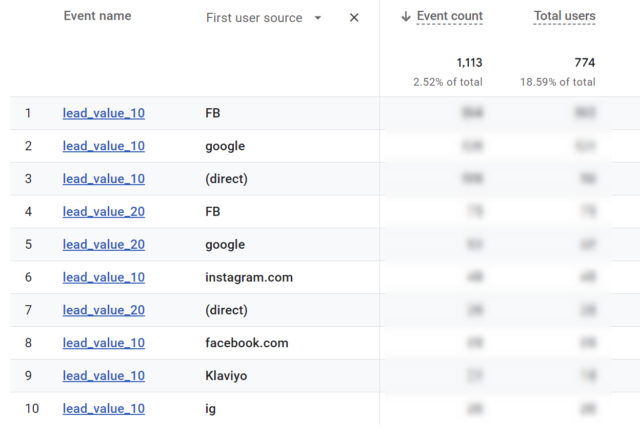
And this is a simple example of what you can see in your tracking tools.
How to set up visitor scoring
To set up visitor scoring, you need to:
Step 1. Use custom triggers to track events that are important to your business.
Step 2. Give point values to these events

We recommend giving the events values from 1 to 9, where 9 is adding a product to cart or starting checkout. You can also set negative values if some events show that a person is not interested in purchase. See this example:
| Action | Points | Why |
|---|---|---|
| Visited homepage | +1 | First touch, minimal intent |
| Viewed any category page | +2 | Browsing, early exploration |
| Viewed a product page | +3 | Looking for a product that meets their needs |
| Showed interest in a product (scrolled 66%, viewed gallery, stayed 20+ sec.) | +6 | Considering a purchase of a specific product |
| Used product search | +3 | Actively looking for something |
| Viewed 3+ product pages in one session | +4 | Strong browsing intent |
| Added product to cart | +9 | High purchase intent |
| Started checkout | +9 | Very high intent |
| Signed up for newsletter | +4 | Willing to stay in touch |
| Visited “About Us” or “Reviews” page | +3 | Building trust |
| Visited “Return policy” page | -9 | Not a buyer |
| Visited “Careers” or “Investor Relations” | -5 | Not a buyer |
Step 3. (Optional in WP FP version 10+) Set how many points visitors have to collect to send this information to tracking tools

WP Full Picture does not send information about collected points to tracking tools, every time it happens. Instead, it sends it when specific numbers are reached.
By default (in WP FP 10+) it sends events when visitors collect 10, 20, 30, 40 and 50 points. You need to set it to these values yourself in WP FP 9 and lower.
4. Set custom events in your tracking tools
Find the “Custom events” sections in the settings of your tracking tools.
Set up sending events for all triggers “Reached Lead Score X” on the list.

And this is everything you need.