
Installing Meta Pixel is not very straightforward, so follow this tutorial step by step.
Create a new data source
At this point, you should have an ad account set up in the Facebook Business Manager. if not, setting it up should be your first step.
If you already have an ad account:
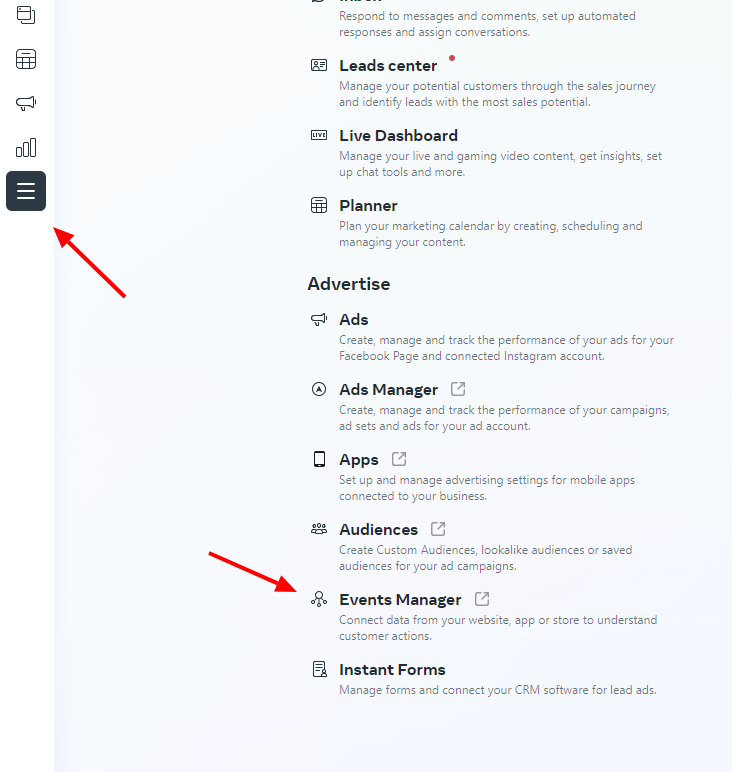
1. Go to the events manager
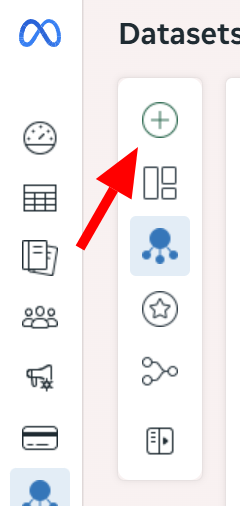
2. Click the “plus” icon
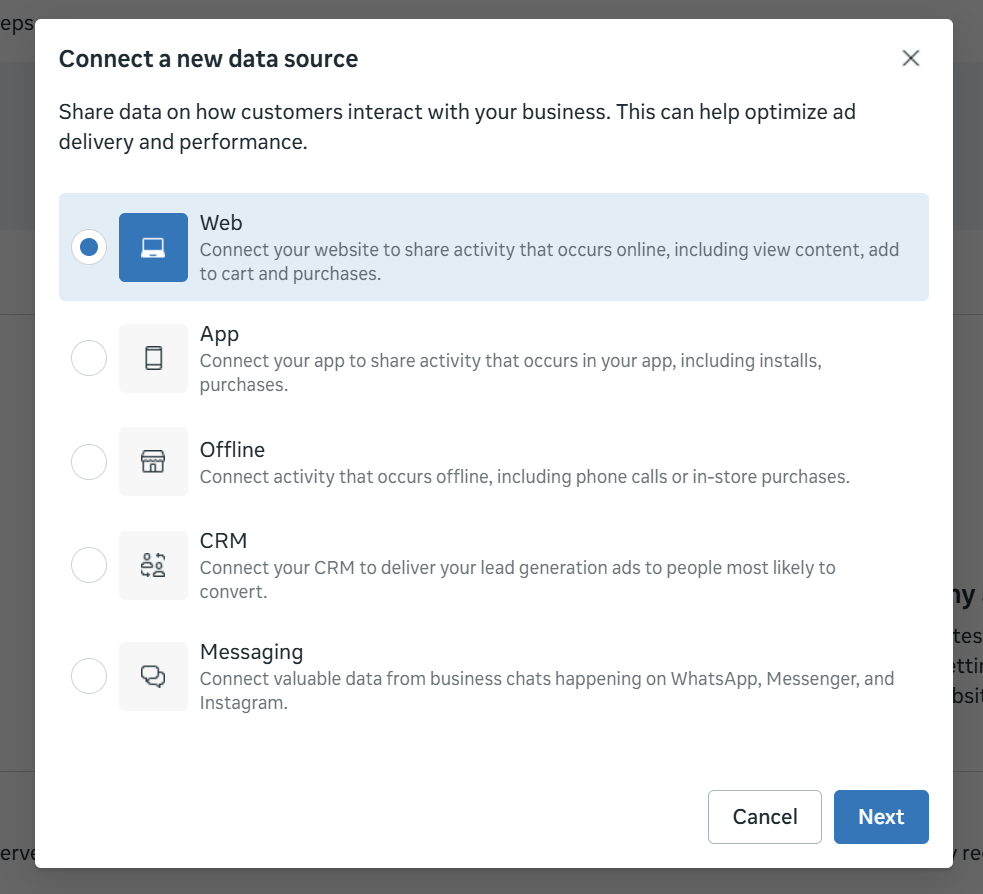
3. Choose “web”
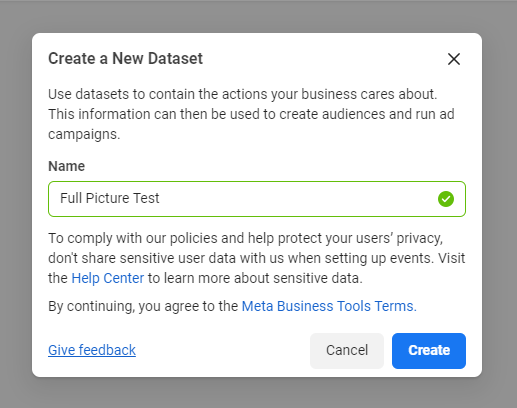
4. Give your dataset a name and associate with an ad account
Get a Pixel ID / Dataset ID
- At this point, you should see an “Overview” page with 4 options:
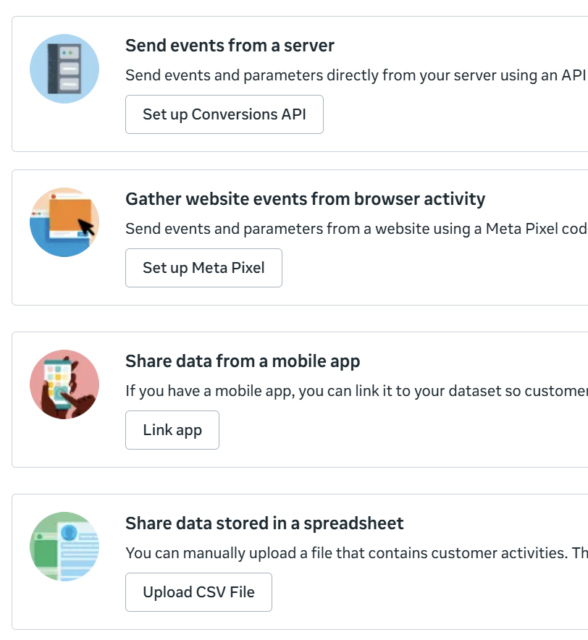
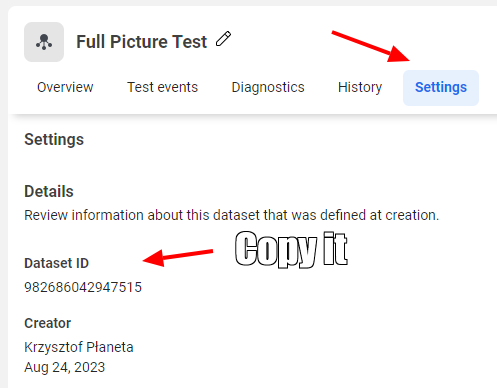
Disregard them and click the “Settings” tab and copy the dataset ID (can be also labelled as Pixel ID)
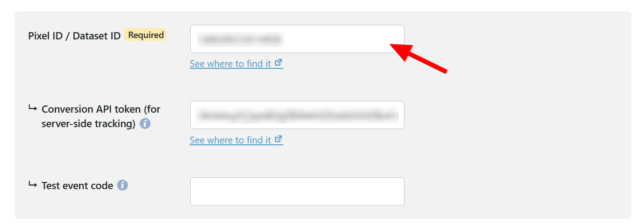
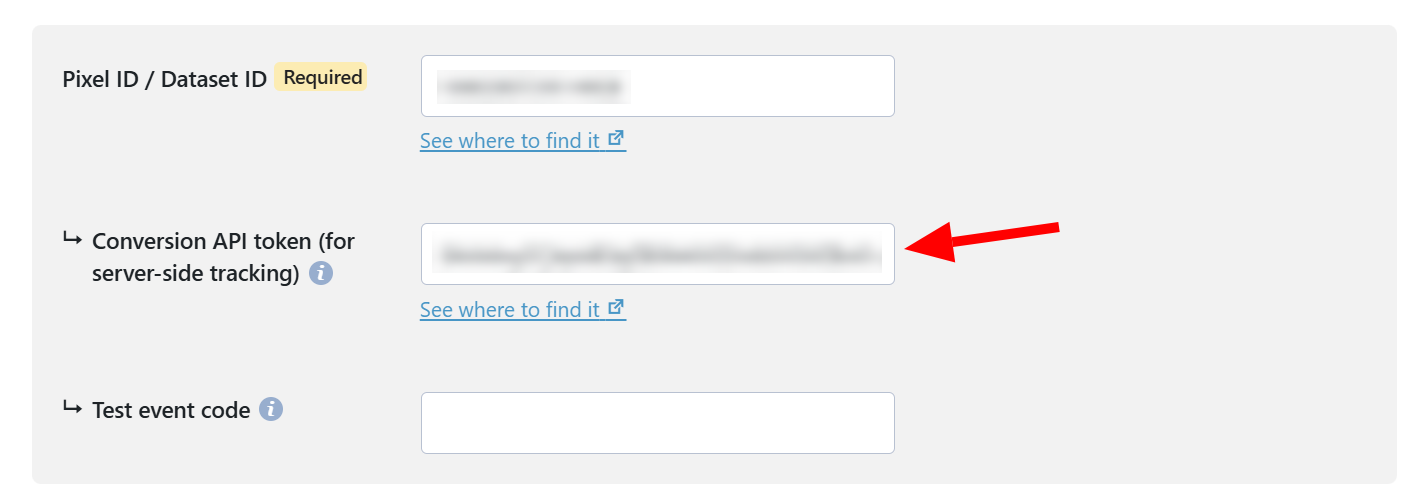
2. Paste your dataset ID (a.k.a. pixel ID) in the Meta Pixel module settings in WP Full Picture
Get Conversion API token
If you are using WP Full Picture Pro, you can use Conversions API to send data to Facebook also via server. This lets you track more events by avoiding some ad blockers. To get Conversion API token:
- While you are still on the “Settings” tab, choose “Conversions API Gateway“
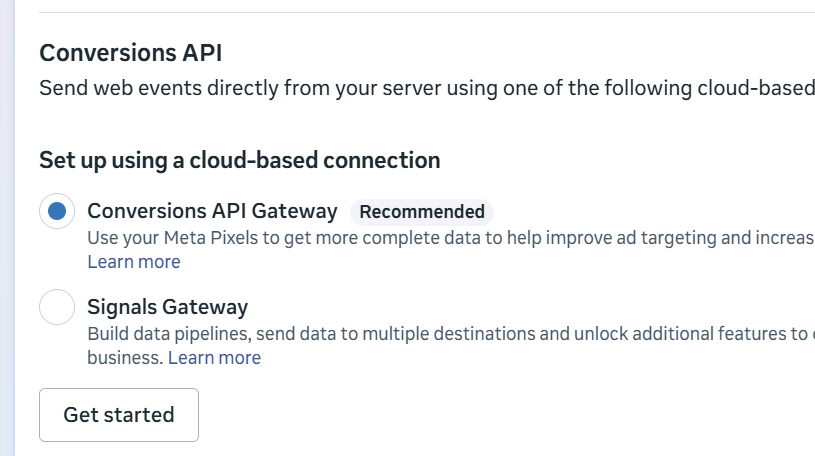
2. and “Set up with Dataset Quality API“
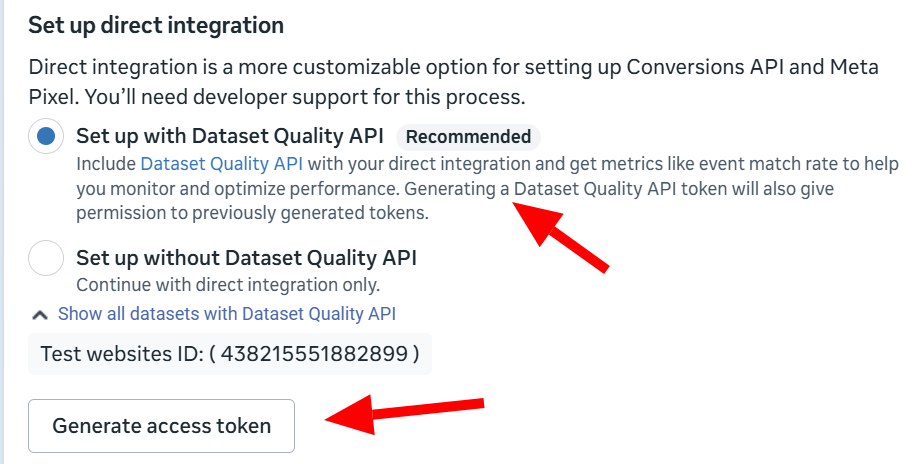
3. Click “Generate access token”.
4. Paste the token into the “Conversion API token” field in WP FP
Testing installation
At this point, your Meta Pixel will be installed and will be collecting data. However, you will not see any traffic data in the “Overview” page until the next day.
If you want to test your installation sooner, follow the steps in this tutorial.