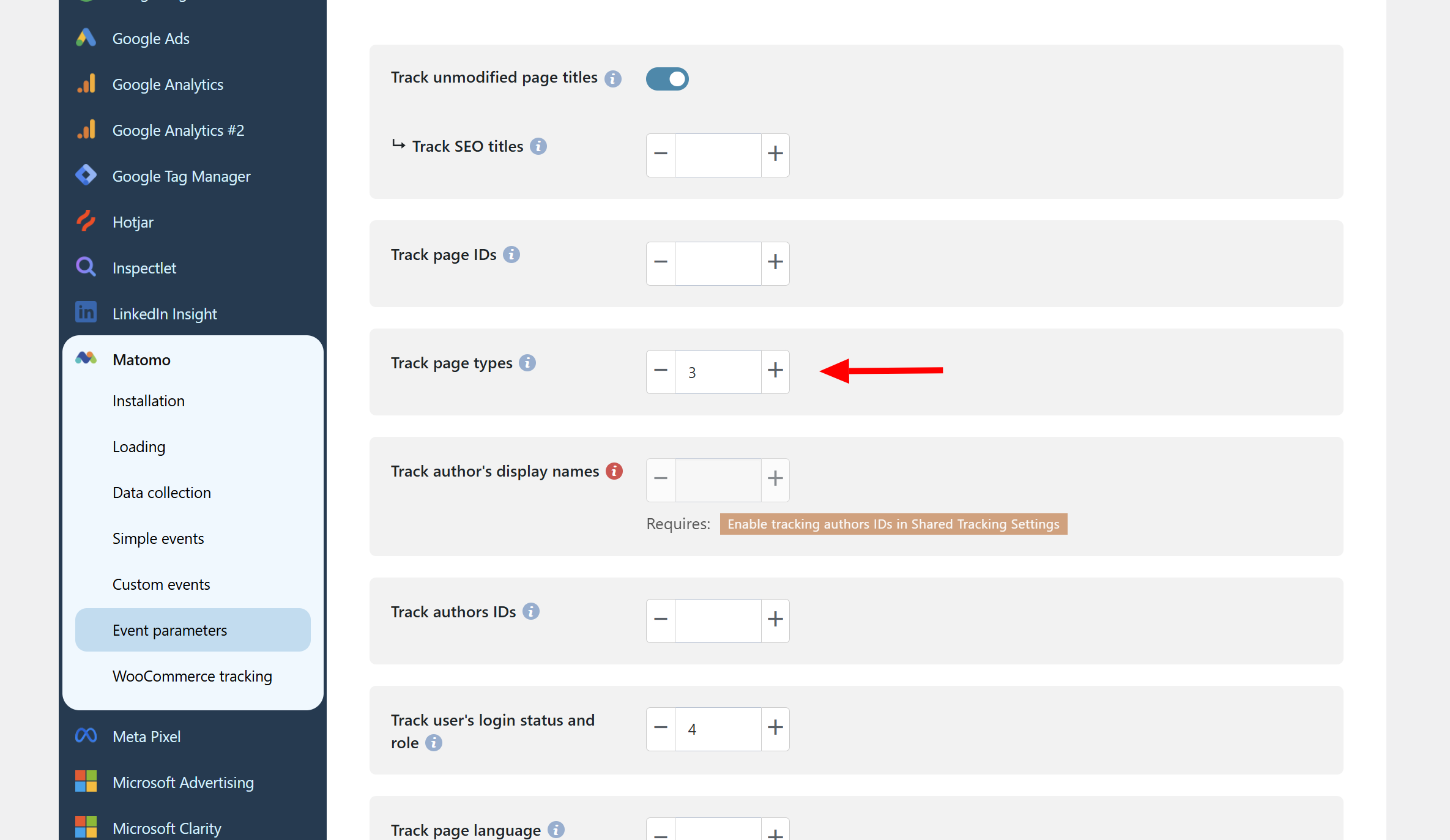
Attention! By default, users of the self-hosted Matomo (on-premise installation) can track up to 5 dimensions with scope “Action” and 5 of scope “Visit” (this can be increased to 50 each) and cloud users can track up to 30 dimensions (15/15) (this cannot be changed).
To register an event parameter in Matomo, you need to do the following:
Step 1 – Go to Matomo’s Custom Dimensions settings
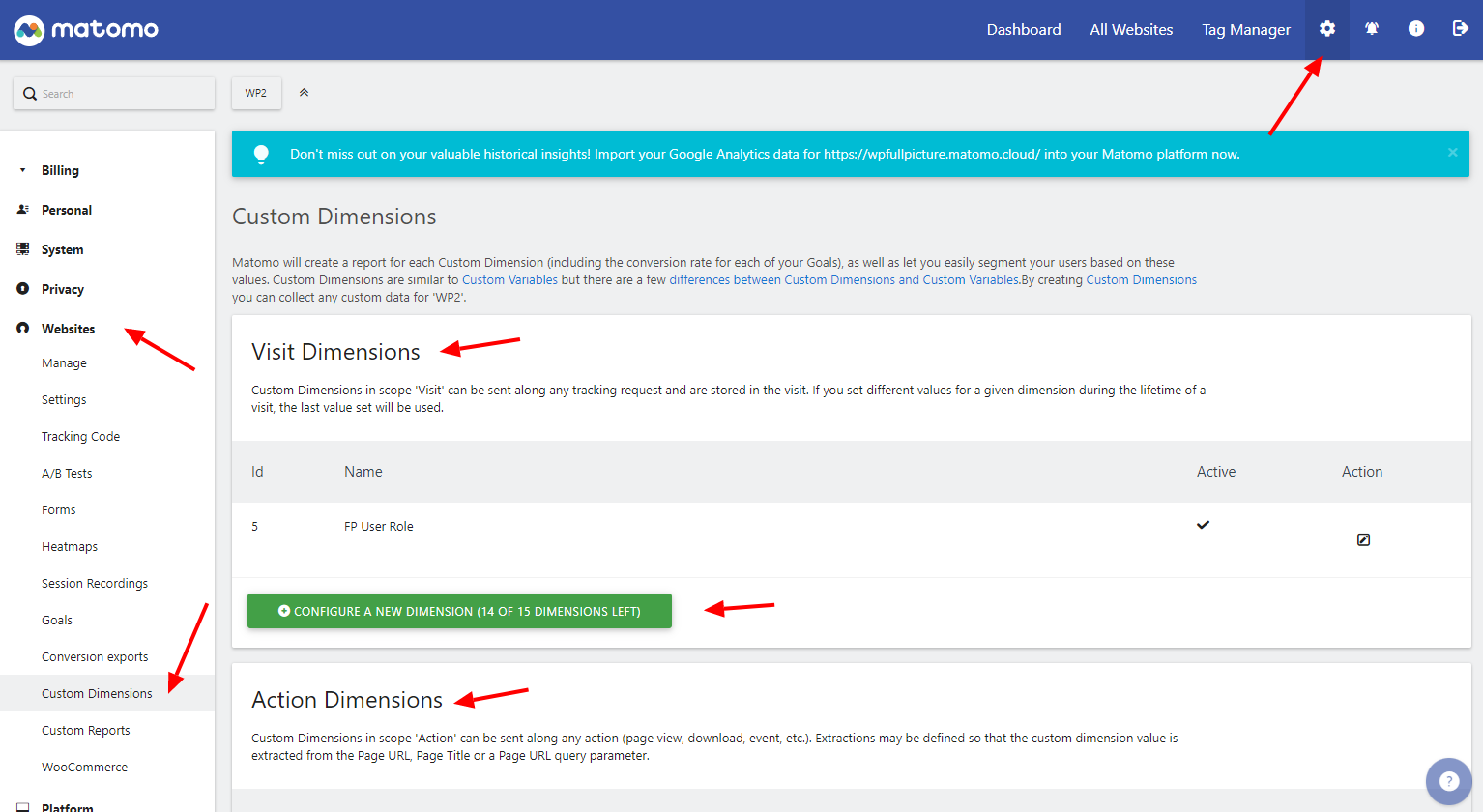
- Visit Matomo dashboard
- Go to the Administration area (cog icon in the top menu)
- Open “websites” > “custom dimensions”
- Add your custom dimensions either in the “Visit” or “Action” section (depending on the information provided in the Matomo’s settings panel in WP Full Picture’s)
Step 2 – Add a custom dimension
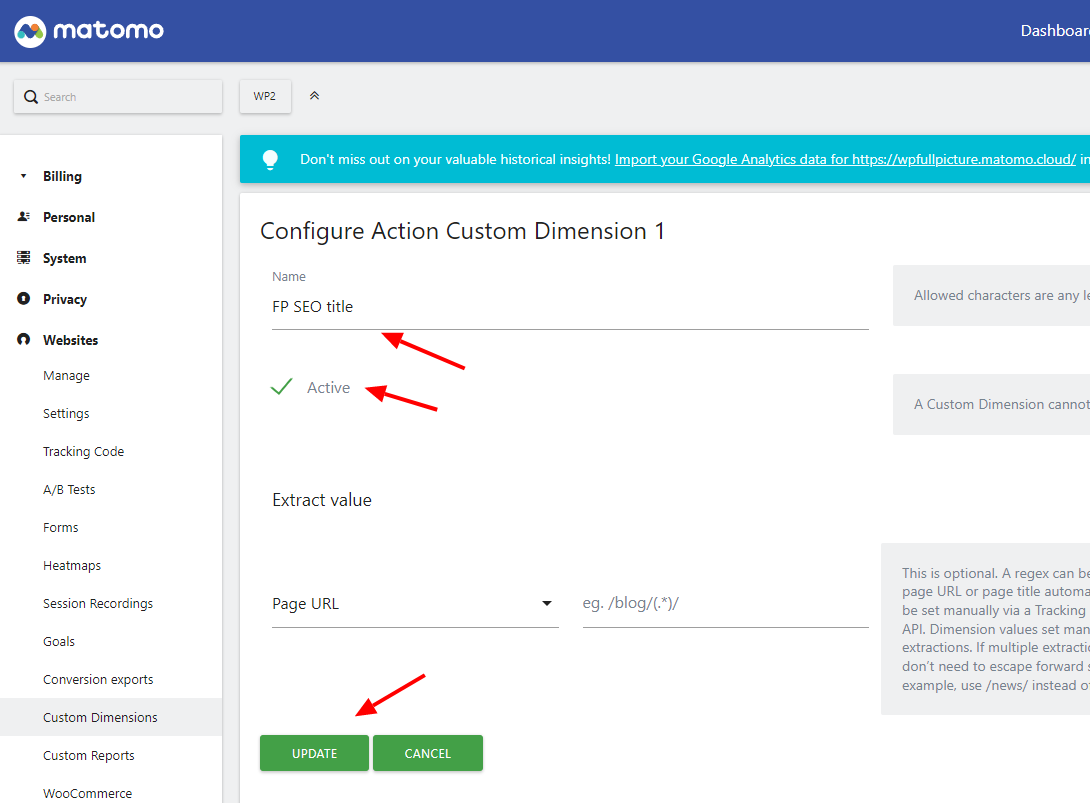
- Give a new dimension a name and click “active” but do not set “extract value”
- Save changes
Step 3 – Find the dimension’s index number
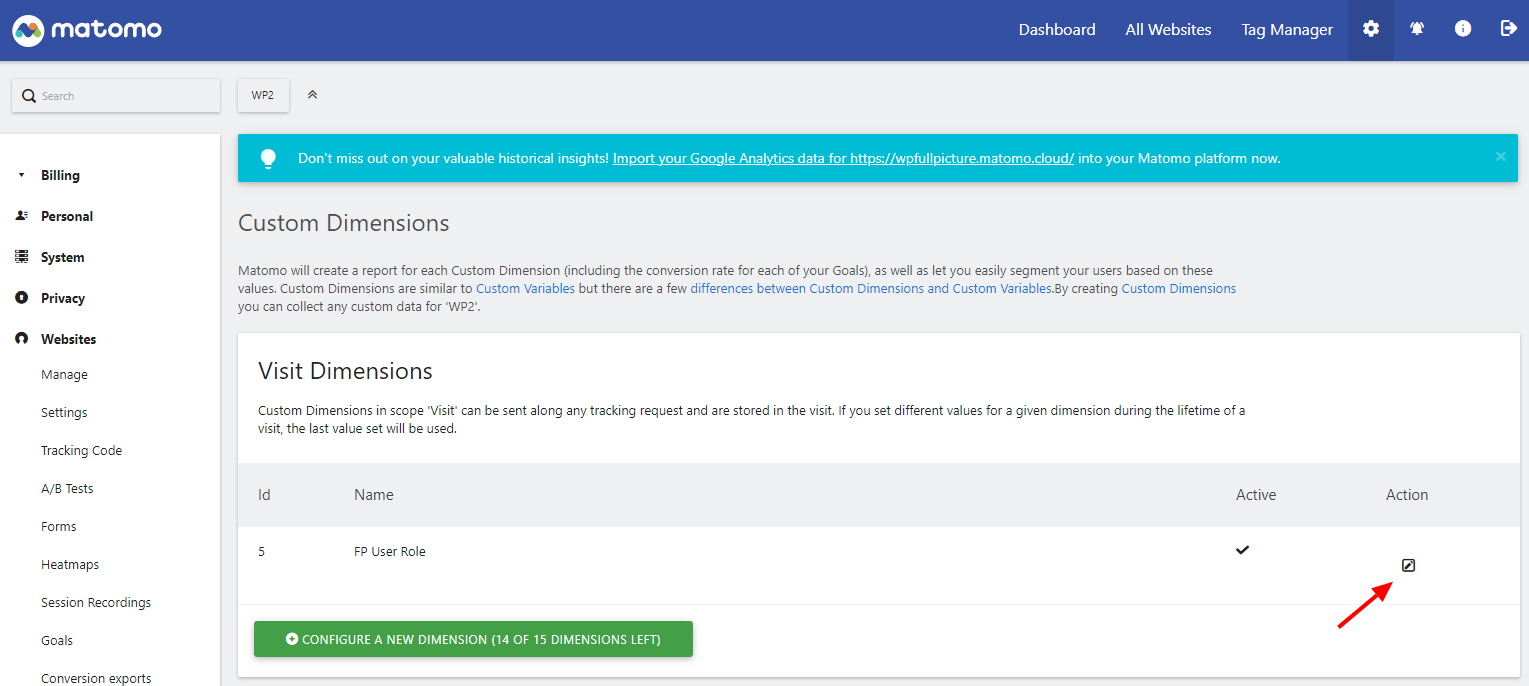
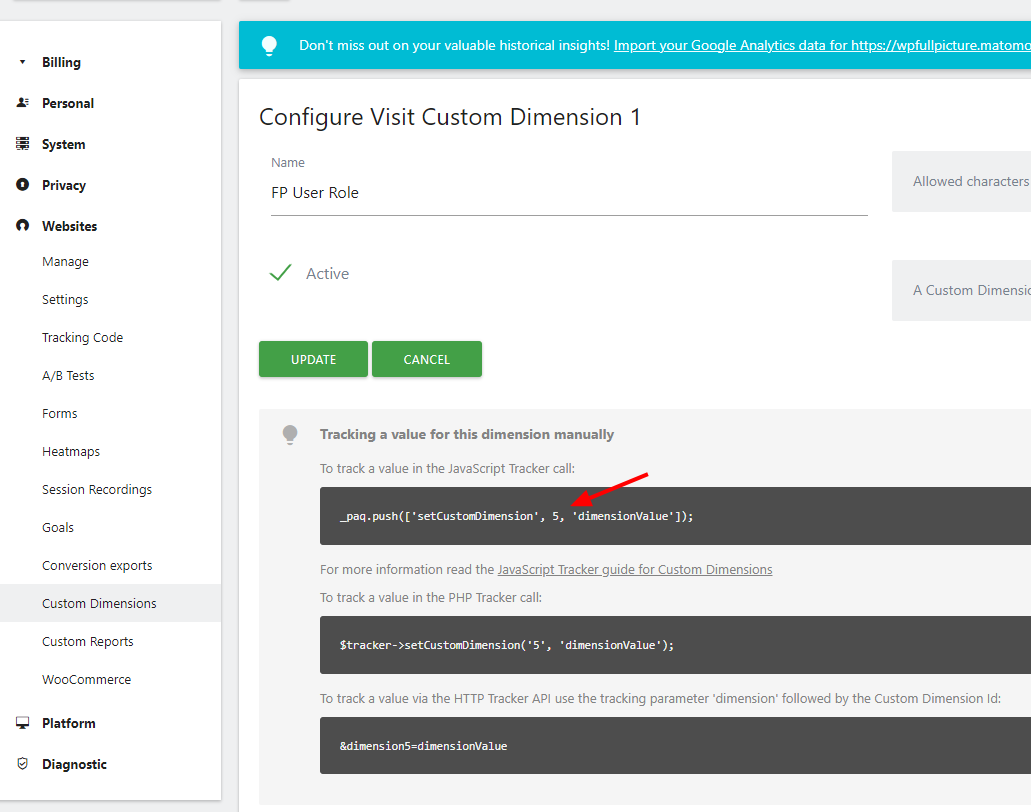
- Click an icon to edit the custom dimension you have just created
- Scroll down the page and look for a piece of code with information with the ID of your dimension, e.g.
_paq.push(['setCustomDimension', 1, 'dimensionValue']); - Paste the ID into the correct settings field in the Matomo settings in WP FP plugin.