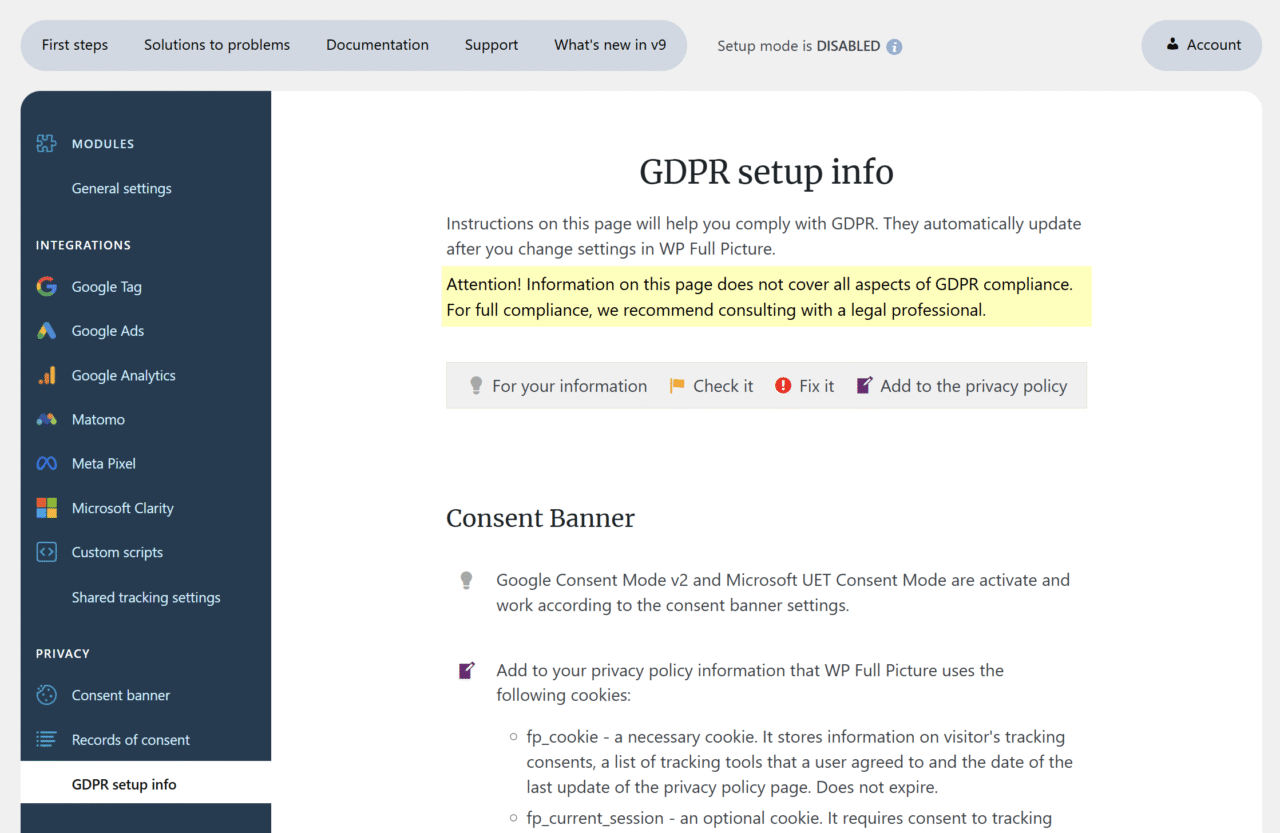
This is a general guide on how to set up tracking that follows GDPR and other privacy regulations. For full information, we recommend consulting with a legal professional.
WP Full Picture lets you track your visitors according to GDPR and other privacy regulations. Follow these steps to learn, how to set it up.
Step 1. Use the consent banner in the right mode
Your consent banner controls how and when tracking tools track your visitors.
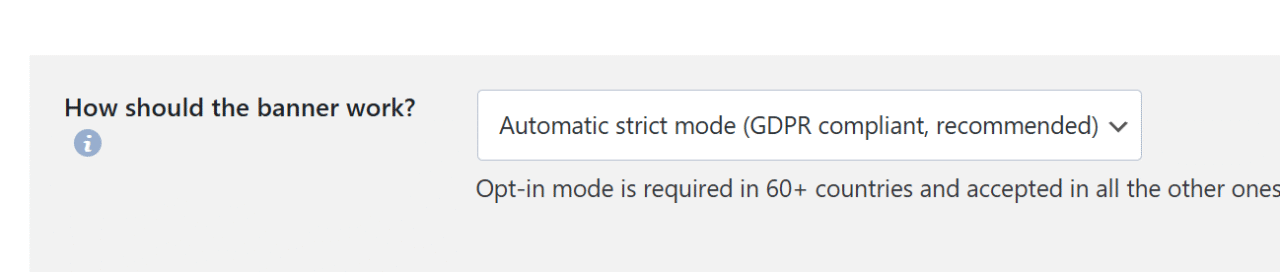
If your site is visited only from one country, choose the method that is required there. Otherwise, choose the opt-in mode (safest, but most strict) or one of the automatic modes.
Opt-in mode will enable tracking after visitors agree to it. This mode works in all countries in the same way.
Automatic modes load tracking tools according to privacy regulations of countries of your visitors. You need to enable Geolocation in the General Settings to see automatic modes in the list of available options.
Step 2. Control all tracking tools on your site
When a tool is controlled, it means that WP Full Picture can enable or disable it depending on visitor´s consents.
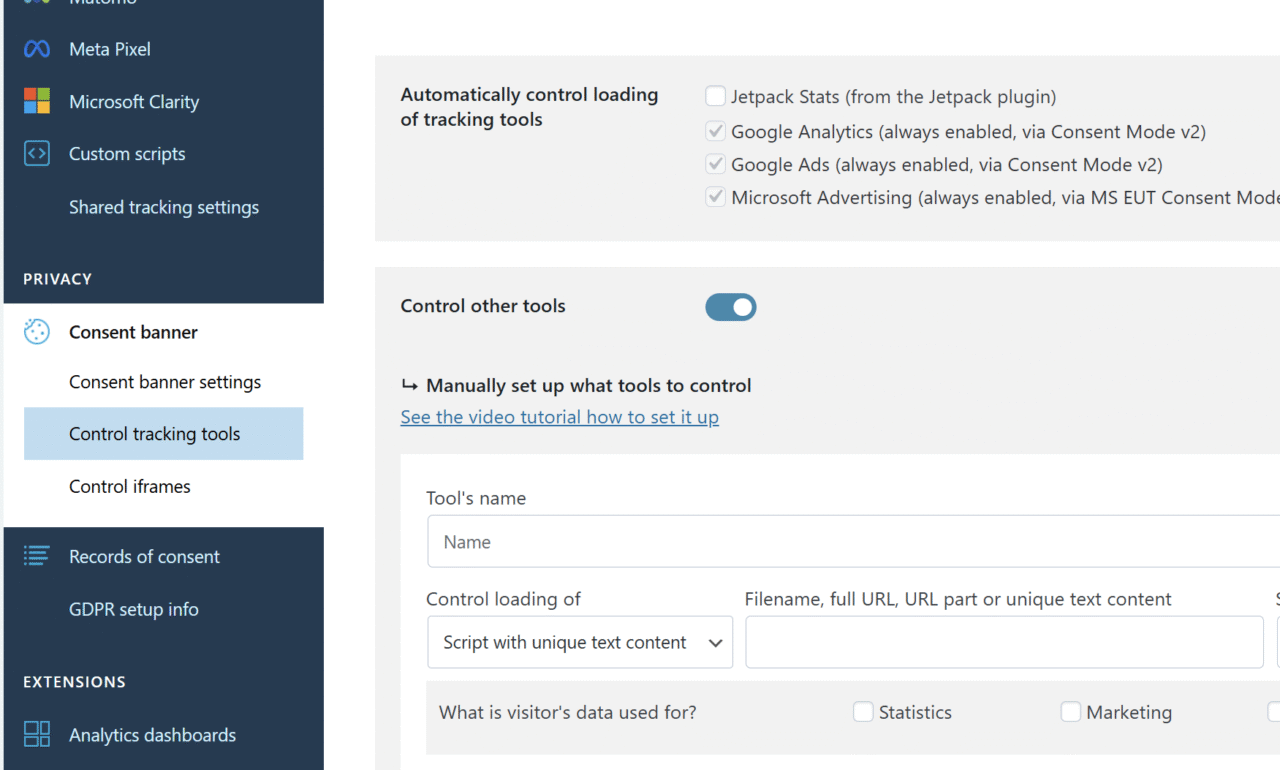
WP Full Picture automatically controls all the tracking tools that you install with WP FP’s modules.
However, if you installed other tools with different plugins or scripts, then you need to make it possible for WP Full Picture to control them.
There are two ways you can do it:
- move their installation scripts to the “Custom Integrations” module
- or use the “Control other tools” settings (in the settings of the Consent Management module)
Step 3. Load content from other sites after consent
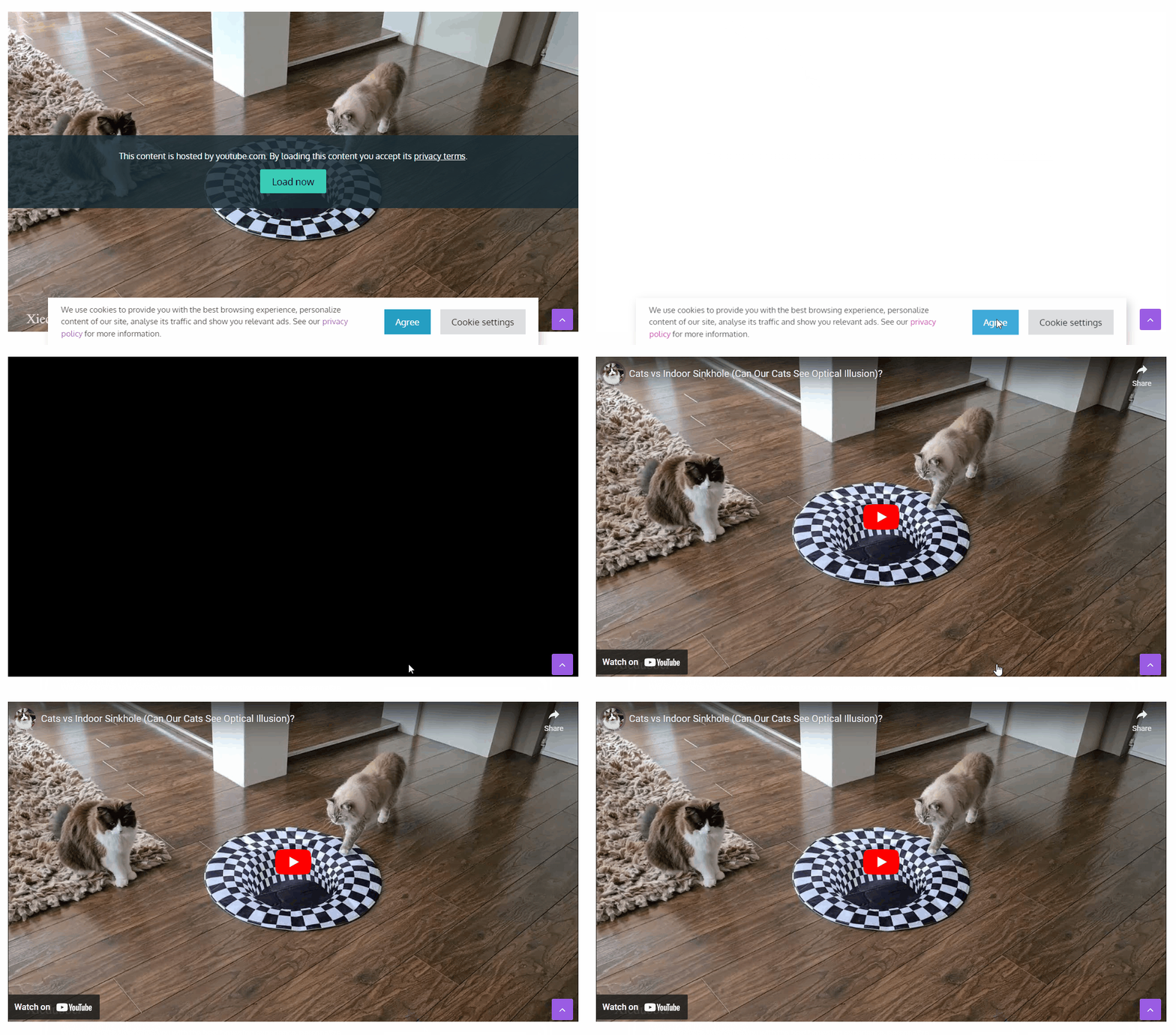
Content embedded from other websites, like YouTube videos, maps, forms and other, can also track your visitors and so, they also require visitor´s consent.
WP Full Picture can load image placeholders in their place until visitors agree to tracking. Depending on how iframes are added to your site, you can block them in three ways. Learn more in this article.
Step 4. Replace Google Fonts
Google Fonts can collect your visitor’s IP addresses, thus breaking some privacy regulations (mostly in Europe).
WP Full Picture gives you a simple “Safe fonts” module, which you can use to replace them, but it may not work for all websites.
Other ways to replace Google Fonts are:
- to switch them to local fonts (files kept on your server) in your theme options and/or plugin options
- or use a plugin like OMGF
You can check if these methods work using a fonts checker website service or checking it in your browser’s console (“sources” tab).
Step 5. Have a solid privacy policy
Privacy regulations in different countries require you to disclose different levels of information about how you track your visitors, what information you collect, what you do with this data and what your visitors can do about it.
From my tests, no free generator of privacy policies includes all the important information. If you have a business, I strongly recommend investing in professional help or at least a good that is often updated.
I also recommend you add the clauses about the use of WP Full Picture and ConsentsDB (if you use it) to your website.
Step 6. Monitor changes
Your work will not end when you finish with all the steps above. Monitor changes in your tracking setup to always keep your legal setup and documentation in check.
Every time you change settings of your tracking tools or install new ones, look at the information in the GDPR Setup Helper in WP Full Picture. It contains helpful information on what you need to do to comply with regulations.