
WP Full Picture lets you use server-side GTM service from Stape.io and improve how it tracks standard, custom and WooCommerce events and data.
In this tutorial you will learn:
- How to correctly install sGTM from Stape.io,
- How to send consent information to sGTM,
- How to improve Stape’s WooCommerce tracking with WP FP,
- How to make it comply with privacy regulations.
This information is applicable to WP Full Picture PRO version 10.1 and newer.
Step 1. Install and set up Stape’s plugin
Install and configure Stape’s WordPress plugin.
Stape does a good job at describing its installation process, so follow its tutorials. We recommend you use its “Custom Loader” power-up, but it is not required.
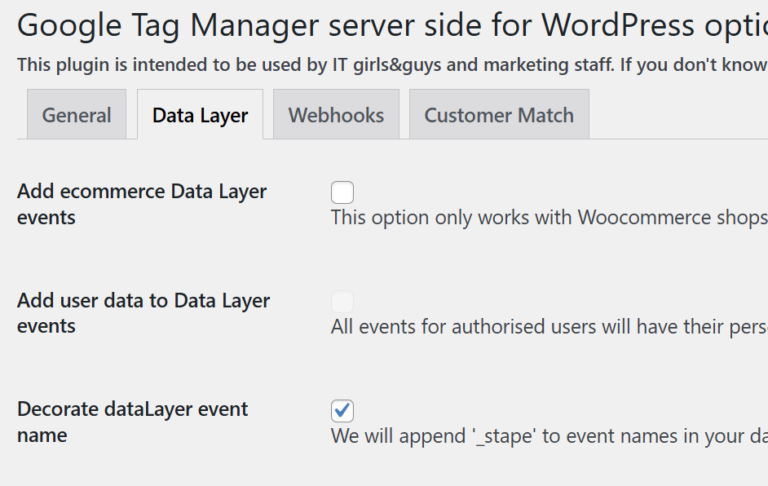
In the plugin’s settings, make sure to:
- in the “General” tab check “Add web GTM script onto every page of your website“,
- if you intend to track WooCommerce events with WP FP then:
- uncheck “Add ecommerce Data Layer events” in the “Data Layer” tab
- check “Decorate dataLayer event name“
Step 2. Install Stape’s GTM templates
Stape provides a handy set of GTM templates, which save you time when configuring tags, variables, and triggers.
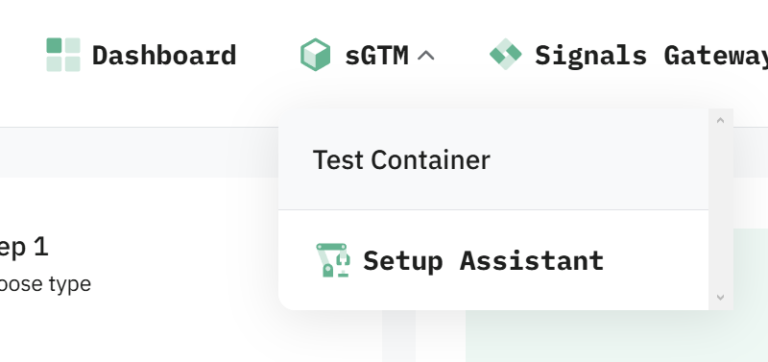
You can load them into your GTM containers automatically via a panel found in Stape’s dashboard > sGTM > Setup assistant.
On the first step, choose:
- Consent settings needed – Yes
- Consent provider – Other
- Consent event name – fp_privacyPreferencesChanged
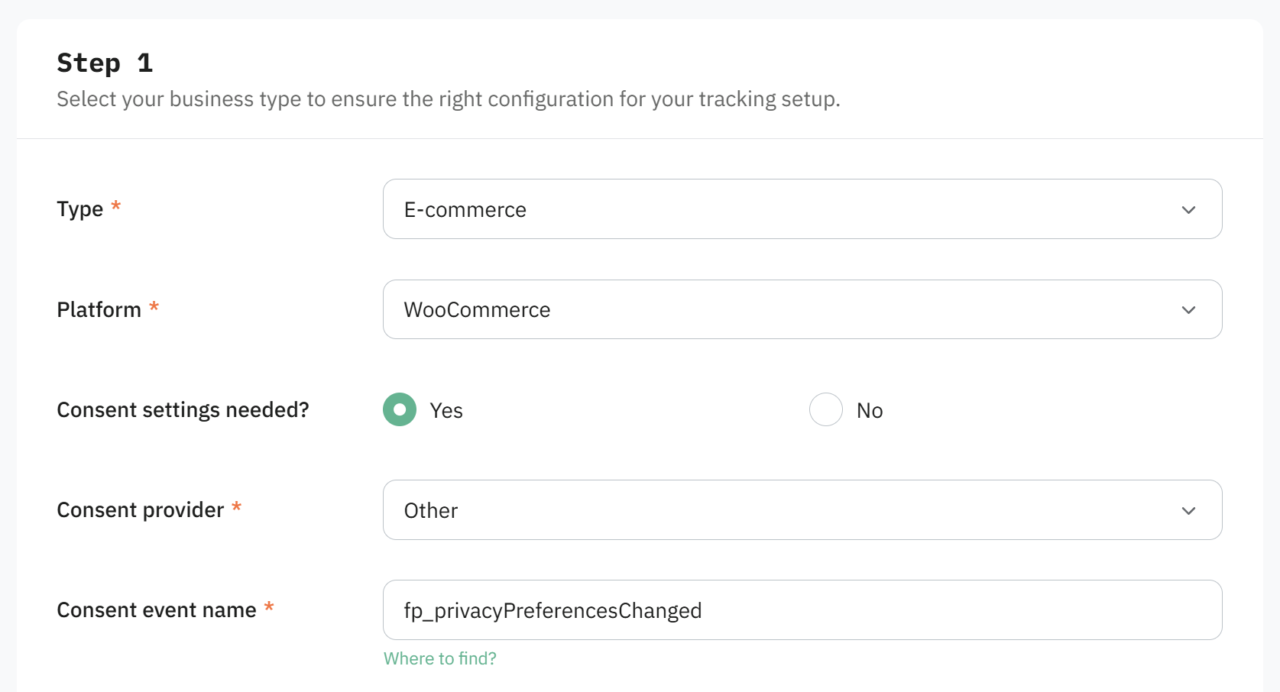
This will make sure that consent information is properly sent and updated in GTM
Step 3. Control Stape’s plugin with WP FP
Go to Consent Management > Control tracking tools > and choose “Stape Conversion Tracking plugin” in the first section.
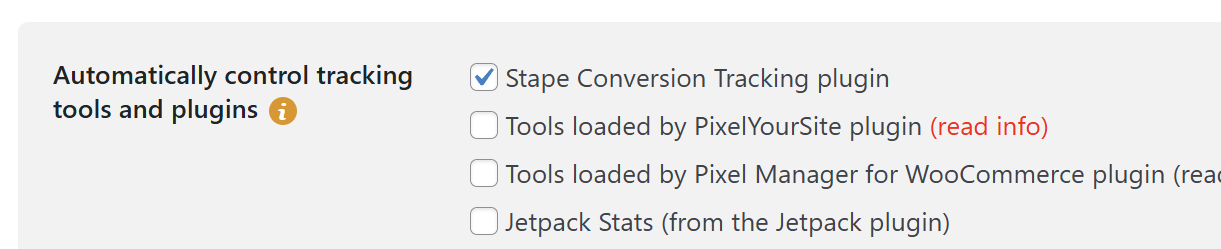
This will make sure that user consents are sent to the GTM container at the right moment.
Step 4. (Optionally) Track more data with WP Full Picture’s GTM module
Even though Stape’s plugin comes with great features for avoiding ad blockers, it does not push a lot of data to the dataLayer.
Even WooCommerce tracking leaves a lot to be desired, with very poor tracking of ecommerce events, no options to choose how you want to track product and order data, etc.
If you want to track all of these, you can do it with WP Full Picture’s GTM module.
To set it up simply go to its settings and:
- Choose “dataLayer” as the “DataLayer name“,
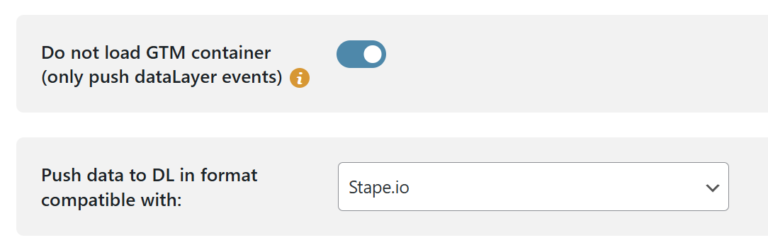
- Check the option “Do not load GTM container“,
- Choose “Stape.io” in the setting “Push data to DL in format compatible with“,
- Choose what data you want to send to sGTM.
After you do this, WP FP will start tracking new events and send them to the dataLayer.
And so, all you have left is to add missing tags and triggers in your GTM containers. Refer to the specialized tutorials on GTM-focused blogs to learn how to do it.