
WP Full Picture automatically blocks all tracking tools that you installed with its modules (plus Google Analytics and Ads installed with other tools). However, you need to instruct WP Full Picture to block other tools.
This article explains how to do it.
What tools to block?
You must block tools which collect information about users that are:
- their personal information, or
- not necessary to run your website and your business.
In practice, this includes:
- analytics and marketing tools
- live chats
- scripts for marketing automation
- personalization and conversion optimization tools
- any scripts from social media platforms
It is not important whether these tools use cookies or not. Cookies are just one of the technical means that make tracking possible. What is important is what information is collected and how it is used.
Move code snippets to the Custom Integrations module
If you installed any tracking tools with a code snippet (usually added to the head of the document), then simply move them to the Custom Integrations module.
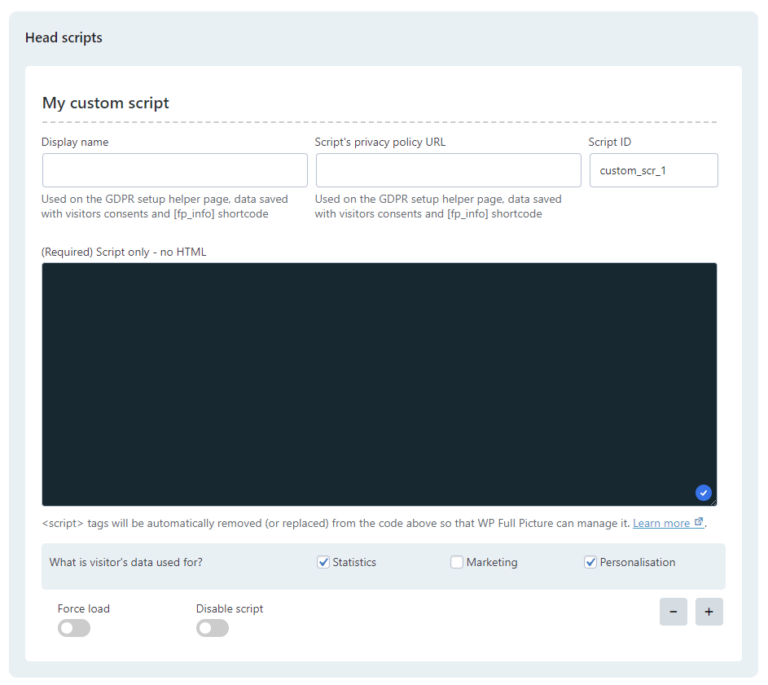
Give the script a name and choose what it uses the visitor’s data for – statistics, marketing or personalization purposes. This tool will then be loaded once the user agrees to collecting this data in the consent banner
Block tracking tools installed with other plugins
This step is for developers.
If you installed some tracking tools with other plugins, then:
- Go to Consent Management > Control tracking tools
- Disable combining JavaScript files in your caching plugin (if you block a script that is combined with other scripts, then your site will break)
- Check if tools that you want to block are listed in the first section.
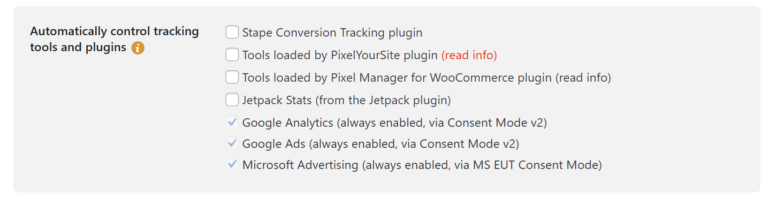
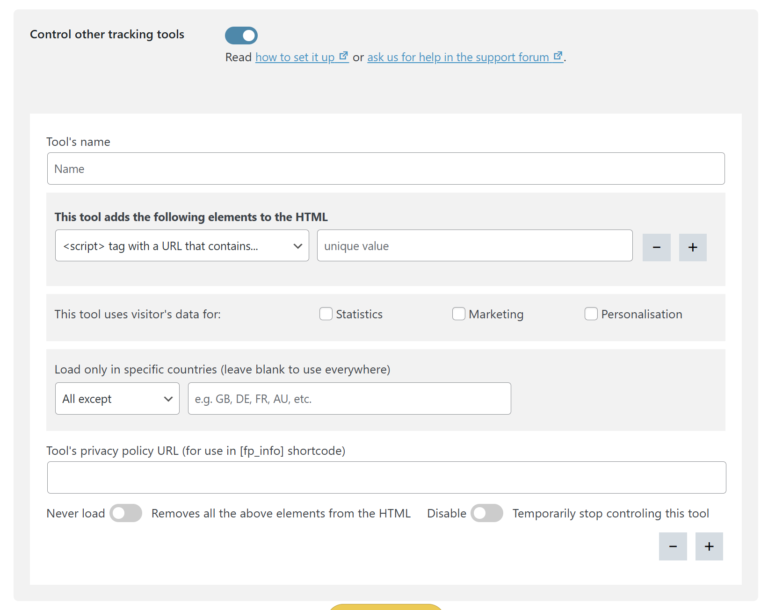
- For all other tools you use, click “Control other tools” and fill in the fields below.
Tip.
It is often enough to block the whole tracking tool, simply by blocking all script files that this plugin loads.
You can do it very easily.
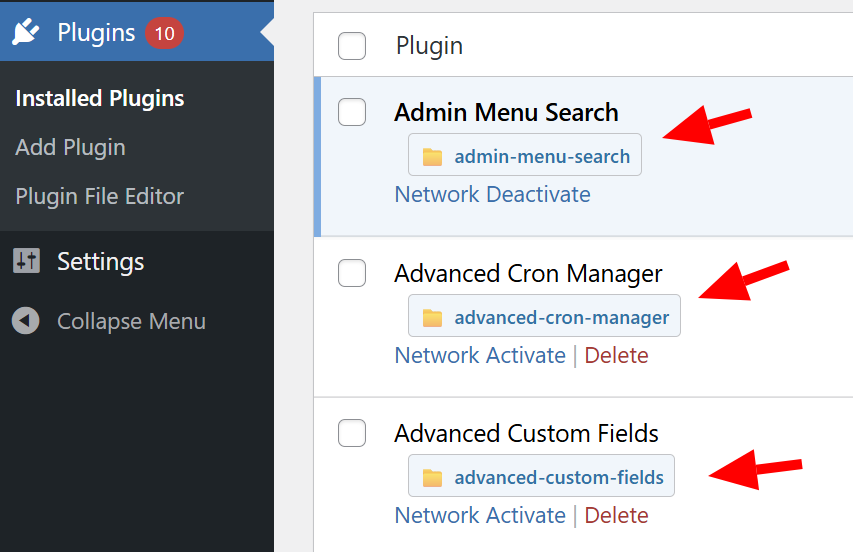
In the section “This tool adds the following elements to the HTML“, choose “<script> with a URL that contains…” and paste the plugin’s folder name as the “value in the next field “unique content” field.
If you do not know the folder name, then check it on the server or install this tiny plugin that I made. It shows folder names on the “Plugins” page.
Test your website
To test if everything works well:
- Switch your consent banner to “opt-in” mode
- Disable ad blocker in your browser
- Start testing your website in the Setup Helper or open it in incognito mode of your browser
- Open the browser console > sources, and see if tracking tools load before you agree to cookies (they shouldn’t) and after that (they should).