
This guide will teach you how to set up WP Full Picture so that it collects the best possible quality of data from your WooCommerce store.
From this article, you will learn how to get:
- the most data you possibly can (without breaking privacy laws)
- clean tracking data (without the traffic you generate yourself)
- the highest number of reported conversions
- the best conversion attribution
1. Make tracking tools correctly recognize traffic from Android applications
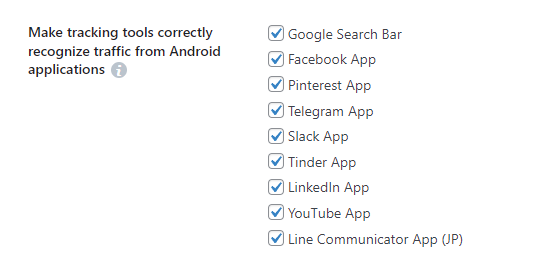
Most tracking tools cannot recognize when people come from social media applications, like Facebook, LinkedIn, Pinterest and other.
WP Full Picture helps them recognize this traffic and report them as coming from websites (not apps).
You can enable this function in Shared Tracking Settings page > Tracking improvements.
2. Stop attributing conversions to payment gateways
When visitors pay for an order on the website of a payment gateway, this gateway becomes the last source of conversion. Although big platforms try to minimize it, by excluding well known gateways like PayPal, Stripe or PayU, they cannot exclude all of them.
And this is where WP Full Picture can help.
If you see that URLs of some payment gateways show up as sources of conversions, then go to Shared Tracking Settings page > Tracking improvements and locate an option “Prevent attributing conversions to payment gateways”.

In the first field, write the address of your order confirmation page, and in the second, write the address of the last step of the checkout process. This way, your tracking tool will not notice that the user moved to a different site to process the payment, hence, not consider it a source of conversion.
3. Track more conversions with Status-Based Order Tracking
Status based order tracking is a unique feature of WP Full Picture and is – at the moment of writing this guide – only available in Google Analytics and Meta Pixel integration.

SBOT lets you track WooCommerce purchases server-side. This lets you track them:
- even when your clients don’t view order confirmation page
- when visitors use ad blockers (some of them)
- plus, it lets you track returns (Google Analytics only)
Learn how to set up Status-based Order Tracking.
4. Learn the value of your traffic sources

Use engagement tracking module, to measure which traffic sources bring you the most engaged visitors. Learn how to use it.
5. Improve conversion attribution
Marketing platforms rely on user data, including email and postal addresses, to more accurately link conversions to specific marketing campaigns and known users in their databases.
WP Full Picture can automatically send this data (in an encrypted form) to these platforms.
You will find options to start sending this data in the “Data collection” section of the settings of your tracking tools.

6. Test and adjust
WP Full Picture can only track WooCommerce events, if your store uses standard WooCommerce hooks and HTML elements.
Unfortunately, many plugins don’t do this and the tracking is incomplete.
How can you learn about it?
Use Setup Helper to view what data WP FP tracks when you add products to cart, start checkout and make a purchase.
If you see a problem, go to WooCommerce Tracking > Custom Adjustments. There, you can find settings that will help you track more data.
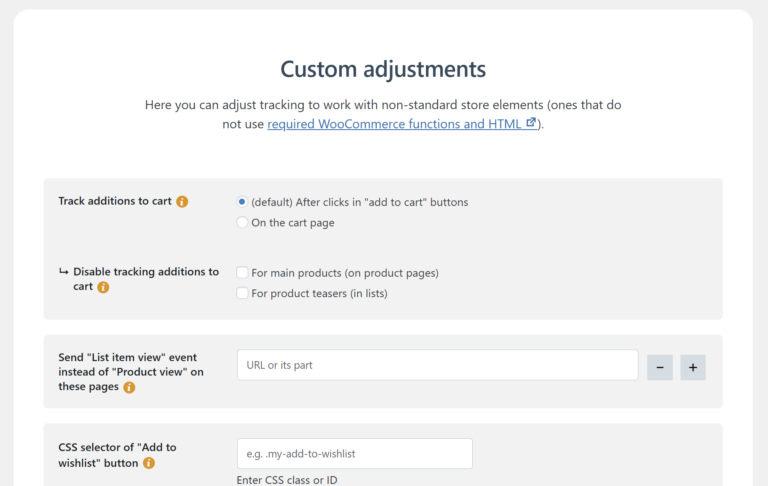
After applying these recommendations, your WooCommerce store should track more data and do it more accurately.
7. Track “big fish” purchasers
When a WooCommerce purchase confirmation page is displayed, WP Full Picture adds to the fpdata object this data:
- completed_orders_number – how many orders a person made
- completed_orders_value – value of all orders completed by the client
- completed_orders_average_value – the average value of an order
You can use it to build custom events and track how many orders come from big purchasers.