
Reactions module lets you improve conversion rates by personalizing your website to every visitor.
You can use it to fire JavaScript functions and change classes of HTML elements in response to:
- actions that visitors take on the site,
- traffic source,
- ad campaign that the visitor came from,
- time of the day,
- and many more.
What can you do with it?
Here are some simple examples:
- Push shoppers towards purchase
Show a popup when someone visits the cart page several times but never goes to checkout. You might offer help, a FAQ link, or a small incentive to finish the purchase. - Reward higher-value carts
Display a notification with a discount code when someone’s cart reaches a specific value. This can gently push them to complete the order instead of abandoning it. - Match the offer to the ad
Show alternative pricing, different benefits, or a special banner when someone comes from a specific ad campaign or region. This keeps the promise of the ad and makes the visitor feel, “Yes, I’m in the right place.”
And these are just a few ideas. You can mix and match rules to fit your goals.
How does it work
Step 1. Go to the Custom Triggers module and set up what will trigger changes on your website.
These can be many things e.g.:
- when someone visits your site from a specific ad campaign
- a specific date, time or date range
- value of products in cart
- the number of times someone visited cart page without making the purchase
- when someone’s mouse left the screen of a specific page
- if the user is browsing from a specific country
- when someone’s visitor score reached 20 points
- and many more
Step 2. Go to the Reactions module and choose what type of change you want to trigger.
You have two options:
- trigger a JavaScript function (with optional parameters that will be pushed to functions)
- change a class of an HTML element
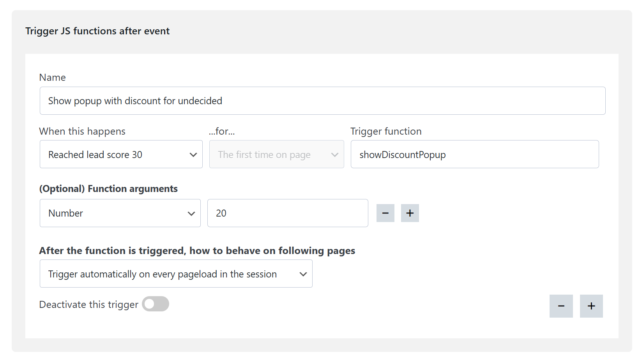
Tips for triggering JS functions
Paths
You can enter paths to JS functions and variables in “Trigger function” field and argument value field.
This is useful if the function or variable you want to trigger, is inside another object. In that case you can enter it with a path like this window > document > my_object > my_function or or fpdata > page_type.
Window is optional. If it is missing, it is assumed to be the first element of a path.
fpdata is a special object that WP FP creates. You can learn more about it here.
Remember, that functions and variables cannot be set with “let” or “const” keywords. They must be accessible from the window object.