
This guide will teach you how to set up WP Full Picture so that it collects the best possible quality of data from your WooCommerce store.
From this article, you will learn how to get:
- the most data you possibly can (without breaking privacy laws)
- clean tracking data (without the traffic you generate yourself)
- the highest number of reported conversions
- the best conversion attribution
1. Stop people from browsing your site without making a choice in the consent banner
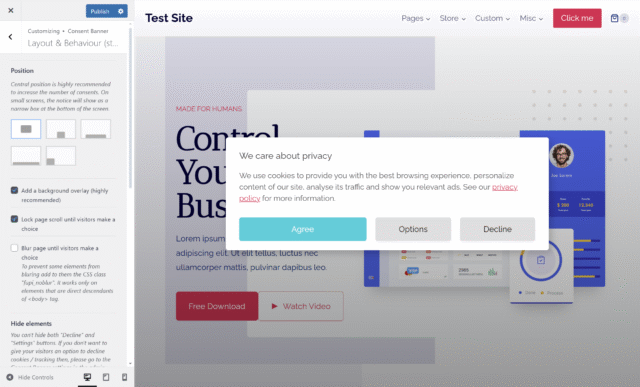
If you use a consent banner, remember to set it to display in the central position of the screen on desktop devices. This will prevent visitors from scanning your site without making any choice, hence increase the amount of consents.
2. Make sure you and your employees are not tracked
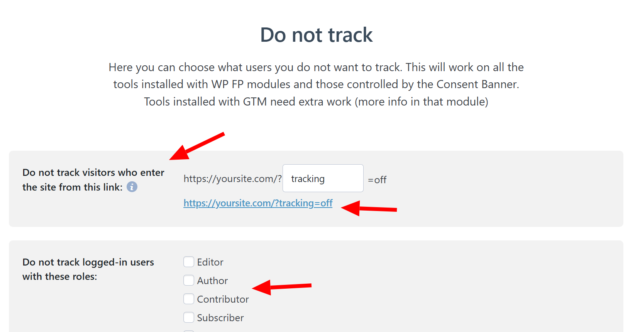
Go to the General Settings page and click the link you see there. This will turn off tracking tools on your device. You can send this link also to other people. Learn more about it here.
3. Test and enable these options…
WP Full Picture has two options that can improve your tracking, but sometimes cause issues. They are disabled by default. but it is worth to test and enable them.
You can enable both of them in Shared Tracking Settings page > Tracking improvements.
Improvement to tracking clicks
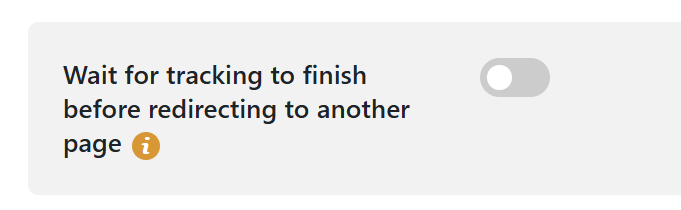
If you are using many tracking tools that track clicks (additions to cart also count) then it is worth to test and enable the option “Wait for tracking to finish before redirecting to another page“.
How to test it?
After you enable this function, go to incognito mode of your browser and click on buttons on your site. If any of them double-click, then this is caused by this function.
Improvement to tracking when page elements are visible on screen
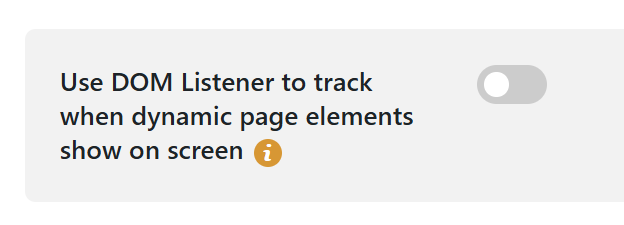
WP Full Picture lets you track when popups, pricing tables, ads, and other important page elements are being viewed. However, by default, it can only track them when they exist in the page’s HTML at the moment of loading the page. If any of them is created dynamically (after user’s action) then their views won’t be tracked.
To make it possible to track them, turn on an option “Use DOM Listener to track when dynamic page elements show on screen“.
How to test it?
This function may cause issues on sites that have many dynamic elements or are constructed on the fly, by JavaScript functions. Animations on such pages will run slower when this option is active and the website will require more CPU power.
4. Make tracking tools correctly recognize traffic from Android applications
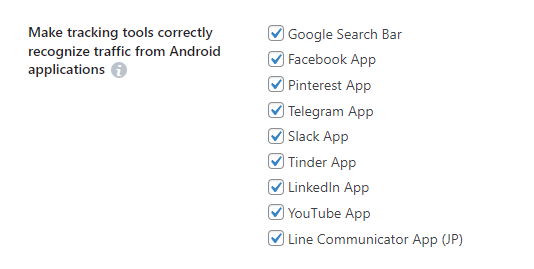
Most tracking tools cannot recognize the source of traffic when people come from Facebook, LinkedIn, Pinterest and other social media applications.
WP Full Picture helps them recognize this traffic as coming from these social media sites.
You can enable this function in Shared Tracking Settings page > Tracking improvements.
5. Stop attributing conversions to payment gateways
When visitors pay for an order on the website of a payment gateway, this gateway becomes the last source of conversion. Although big platforms try to minimize it, by excluding well known gateways like PayPal, Stripe or PayU, they cannot exclude all of them.
And this is where WP Full Picture can help.
If you see that URLs of some payment gateways show up as sources of conversions, then go to Shared Tracking Settings page > Tracking improvements and locate an option “Prevent attributing conversions to payment gateways”.

In the first field, write the address of your order confirmation page, and in the second, write the address of the last step of the checkout process. This way, your tracking tool will not notice that the user moved to a different site to process the payment, hence, not consider it a source of conversion.
6. Adjust basic settings of the WooCommerce Tracking module

Go to the settings of WooCommerce Tracking module.
On the first page, choose settings that best suit your store.
Attention. It is very important, that the product ID and prices you track, match the data that you use in your product feeds (for Merchant Centre, Facebook Product Catalog, etc.).
7. Track more conversions with Status-Based Order Tracking
Status based order tracking is a unique feature of WP Full Picture and is – at the moment of writing this guide – only available in Google Analytics and Meta Pixel integration.

SBOT lets you track WooCommerce purchases server-side. This lets you track them:
- even when your clients don’t view order confirmation page
- when visitors use ad blockers (some of them)
- plus, it lets you track returns (Google Analytics only)
Learn how to set up Status-based Order Tracking.
8. Learn the true value of your traffic sources

Stores measure effectiveness of their ad campaigns simply by counting which one of them brought most sales. However, this method doesn’t work if you don’t have enough conversions to see the real results. (You can check it using this calculator).
But there is a solution – visitor scoring.
With visitor scoring, you can measure how many valuable actions (not only purchases) your visitors make and then compare it with your ad costs. This will tell you, which sources are better and which ones are worse.
You can learn how to use visitor scoring from this article.
9. Improve conversion attribution
Marketing platforms rely on user data, including email and postal addresses, to more accurately link conversions to specific marketing campaigns and known users in their databases.
WP Full Picture can automatically send this data (in an encrypted form) to these platforms.
You will find options to start sending this data in the “Data collection” section of the settings of your tracking tools.

10. Test and adjust
WP Full Picture can only track WooCommerce events, if your store uses standard WooCommerce hooks and HTML elements.
Unfortunately, many plugins don’t do this and the tracking is incomplete.
How can you learn about it?
Use Setup Helper to view what data WP FP tracks when you add products to cart, start checkout and make a purchase.
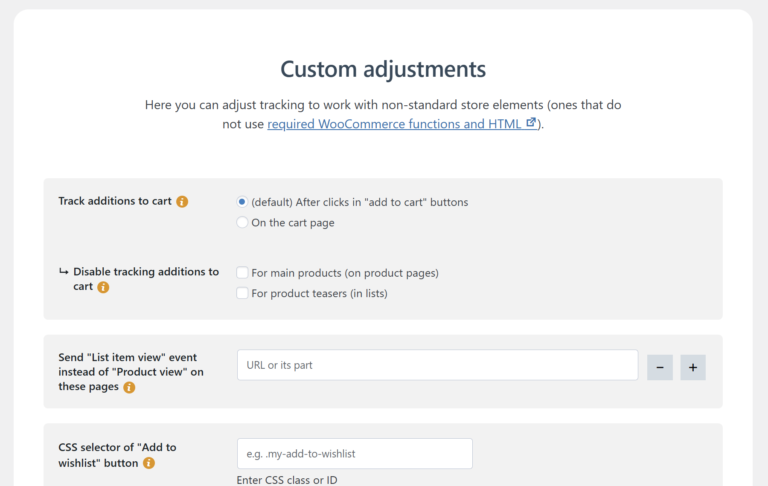
If you see a problem, go to WooCommerce Tracking > Custom Adjustments. Here, you can find settings that will help you track more data.
After applying these recommendations, your WooCommerce store should track more data and do it more accurately.