
WP Full Picture has so many settings, that it’s easy to omit important ones. In this guide, I will show you what options you should be using in all installations.
1. Centre the consent banner
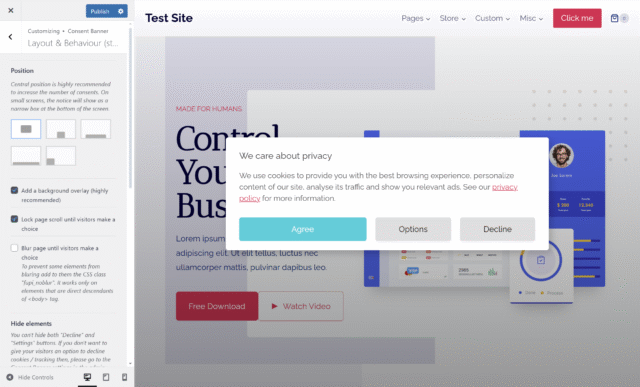
Centred consent banner (on desktop devices) prevents visitors from scanning your site without making any choice, hence increases the amount of consents.
2. Do not track yourself
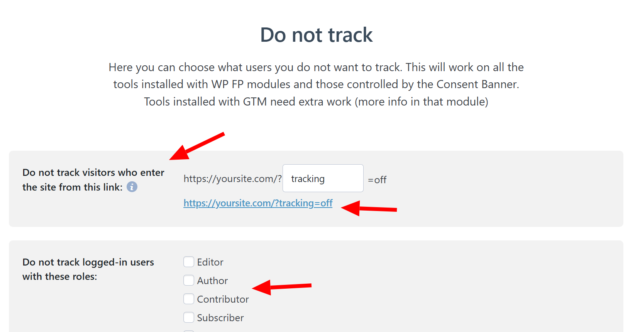
Go to the General Settings page and click the link you see there. This will tell tracking tools not to track you. It will work no matter whether you are logged in or not but will only work on the browser that opened the link. You can also send this link to other people that you do not want to track. Learn more about it here.
Also, consider excluding from tracking some user groups.
3. Consider enabling geolocation
If your site is visited from multiple countries, you may want to enable geolocation on the General Settings page.
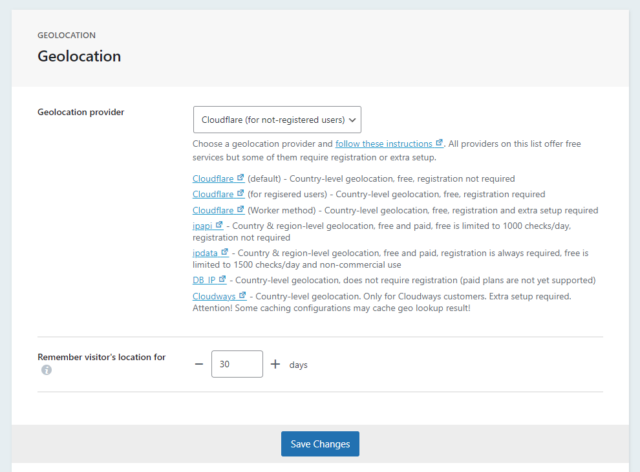
With geolocation, you can:
- use consent banner in different modes in different countries (for example, opt-in mode in EU countries and opt-out in the US).
- prevent tracking tools and custom scripts from loading in specific countries
- use geolocation information in custom triggers
4. Test and enable these options…
Improvement to tracking clicks
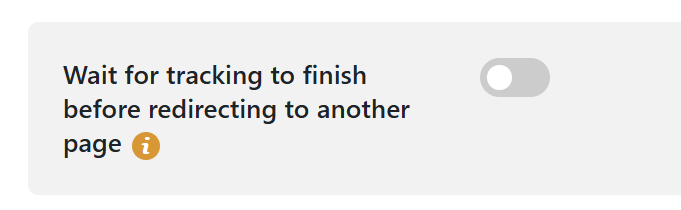
If you are using many tracking tools that track clicks on many page elements, then it is worth to test and enable the option “Wait for tracking to finish before redirecting to another page“.
This function is not enabled by default, because it can cause “double clicks” on some incorrectly coded websites (usually when links work as buttons in sliders).
How to test it?
After you enable this function, go to incognito mode of your browser and click on buttons on your site (especially in sliders). If any of them double-click, then this is caused by this function.
Improvement to tracking when page elements are visible on screen
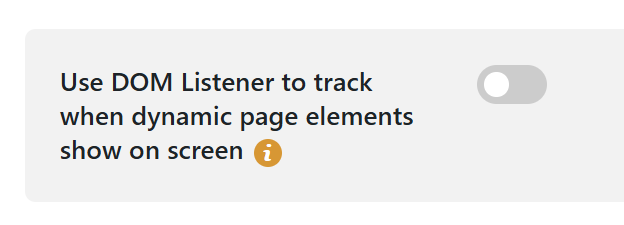
WP Full Picture lets you track when popups, pricing tables, ads, and other important page elements are being viewed. However, by default, it can only track them when they exist in the page’s HTML at the moment of loading the page. If any of them is created dynamically (after user’s action) then their views won’t be tracked.
To make it possible to track them, turn on an option “Use DOM Listener to track when dynamic page elements show on screen“.
How to test it?
This function may cause issues on sites that have many dynamic elements or are constructed on the fly, by JavaScript functions. Animations on such pages will run slower when this option is active and the website will require more CPU power.
5. See hidden traffic sources
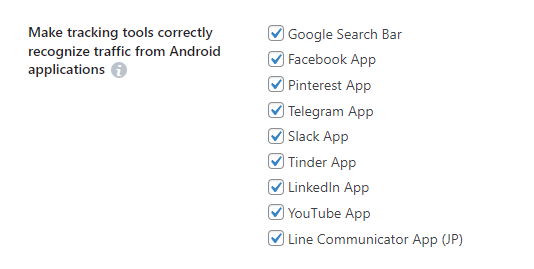
Most tracking tools cannot recognize the source of traffic, when it comes from Android or iOS application. For example, if they click a link on Pinterest app, Google Analytics may recognize this traffic as “Direct”.
Although, we cannot fix it with iOS apps, WP Full Picture can recognize traffic from Android apps and pass this information to tracking tools.
You can enable this function in Shared Tracking Settings page > Tracking improvements.
6. Learn the true value of your traffic sources

Stores measure effectiveness of their ad campaigns simply by counting which one of them brought most sales. However, this method won’t work:
- if you don’t have enough sales (you can check it using this calculator)
- if you don’t have a store (obviously)
But there is a solution – visitor scoring.
With visitor scoring, you can measure how many valuable actions (not only purchases) your visitors make and then compare it with your ad costs. This will tell you, which sources are better and which ones are worse.
You can learn how to use visitor scoring from this article.