
Every business needs to know how many people converted and what traffic sources were responsible for these conversions. Let me tell you how to get these numbers as accurate as possible in your analytics and marketing tools.
What makes accurate conversion and attribution tracking difficult
In short:
- Privacy regulations like GDPR and similar
- Ad blockers
- Users who do not visit “order confirmation” pages (conversions are usually tracked on this page)
- Invisible traffic from Android applications
- Lack of data to attribute conversions to their sources
- Biased attribution models of tracking platforms
Let me show you what you can do about them using WP Full Picture Pro.
How to improve WooCommerce conversion tracking and attribution
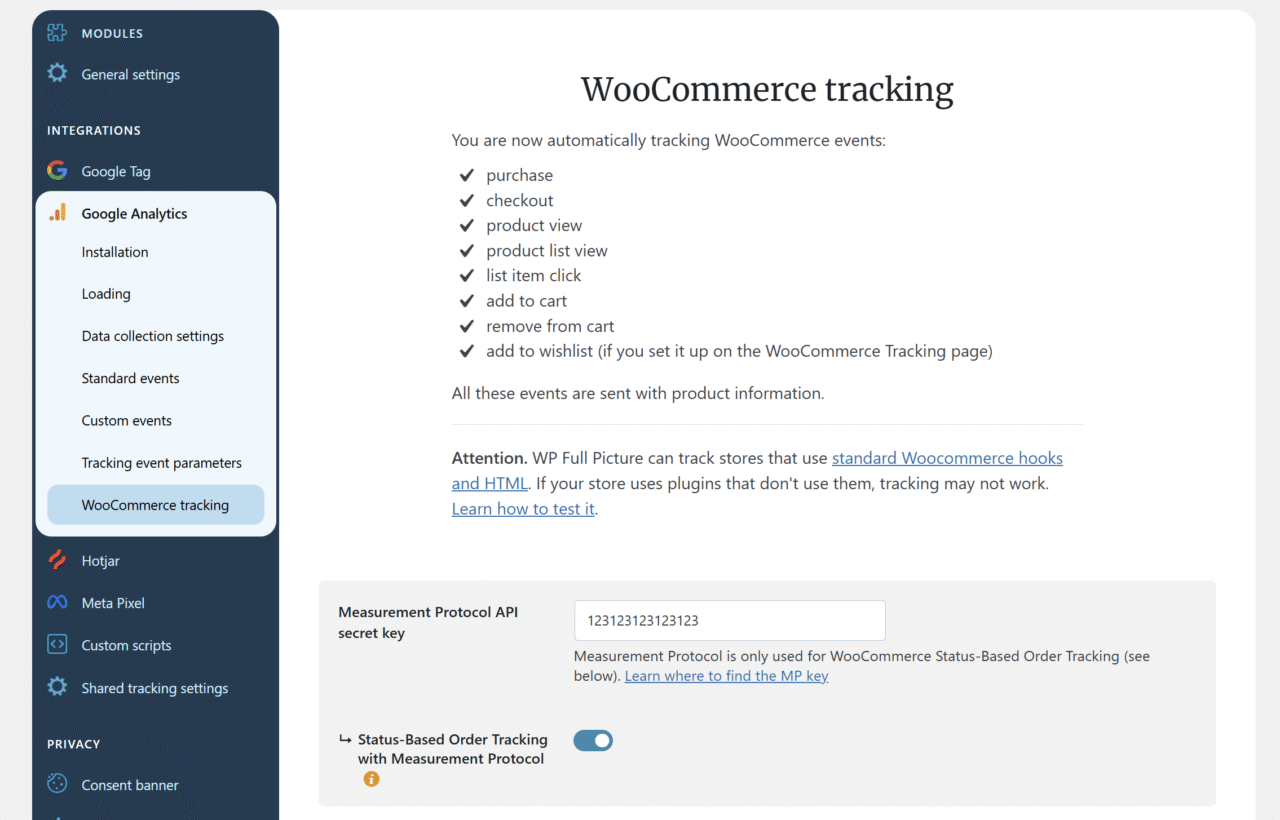
Enable Status-Based Order Tracking (Pro only)
If you use Google Analytics or Meta Pixel, then you should enable Status-Based Order Tracking. This is a method of tracking orders through your server, which will help you:
- avoid ad blockers from blocking some tracking tools
- send conversions even if users did not view order confirmation pages
You can find instructions on how to enable SBOT for these tools, in the settings pages of Google Analytics and Meta Pixel > “WooCommerce tracking” section.
Send user data to marketing platforms (Pro only)
Marketing platforms use user data, such as their email and physical addresses, to better attribute conversions to marketing campaigns and internet users that they keep in their databases.
However, by default, WP Full Picture does not send this data to these tools. This is because:
- you need to change your privacy policy to include information on the user data you save, and
- you need to get consent from your visitors to share it.
You can learn more about it from this article I wrote.
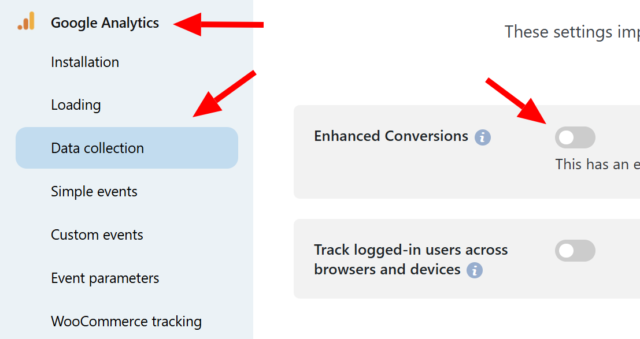
If you decide to share user data with marketing platforms, you can do it in the “Data collection” tab in the settings page of your tracking tools (but please mind, that every platform names the user-data-sharing option differently).
Start using ing the “Custom Scripts” module.
Enable link decoration in Google Tag settings (Pro only)
Attention. Link decoration is a privacy grey-area. Make sure that using it is legal in your country.
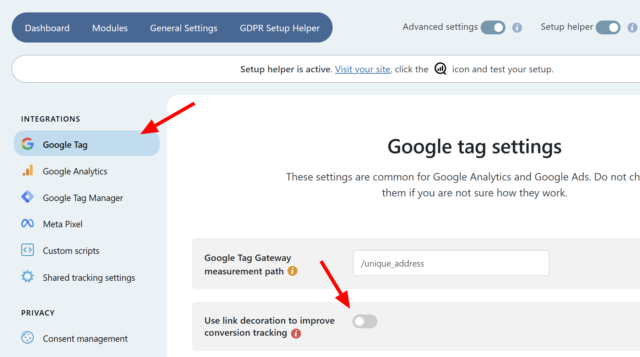
Link decoration is Google’s way to avoid losing attribution information when cookies are disabled.
When you enable link decoration, Google will start adding to all links on your website identifiers that are normally saved in cookies. This prevents them from being removed like cookies.
Enable tracking improvements (Pro only)
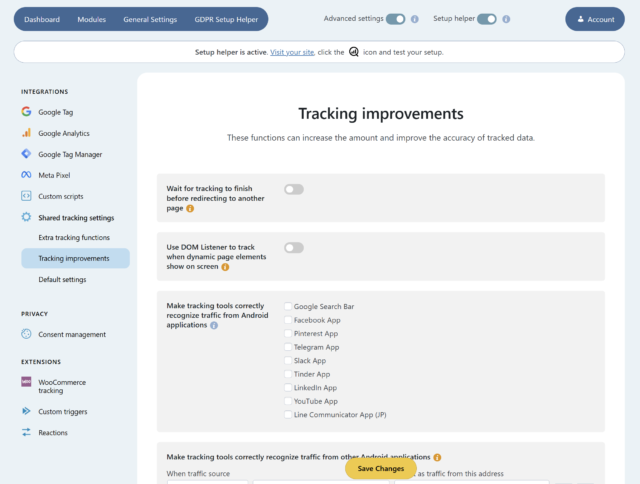
When you enable any tracking tool in WP Full Picture, you will see an extra link in the left menu, called “Shared tracking settings”. Click it and go to the “Tracking improvements” section.
You will find there a number of settings that can improve your tracking accuracy. Put special attention to option “Make tracking tools correctly recognize traffic from Android applications”.
This will let you see in your analytics tools traffic coming from Android applications of social platforms. Normally, you would see it as “unset”.
Start measuring visitor scores (Pro only)
There is one big catch about conversion tracking and conversion attribution.
Comparing performance of different traffic sources / campaigns is useless if you have too few conversions.
For example, see this calculator. Enter the traffic numbers and conversions as reported by your marketing tools.
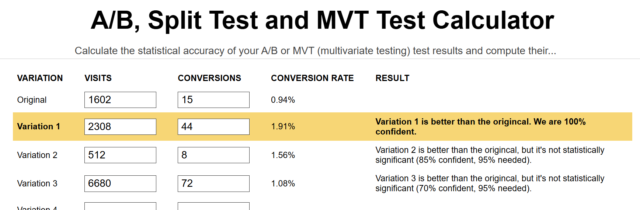
Psst. Originally, this calculator is meant to be used for comparing results of A/B or MVT conversion optimization tests, but it will do just fine also for comparing traffic sources.
If the number of visits from traffic sources or conversions is not enough, it will tell you that you do not have enough data to draw conclusions from.
What to do then?
Use visitor scoring. You can read more about it here.